Quick answer: Apple Watch has no built-in drowsy-driving detection — it can't see your eyes. But paired with an iPhone app that does camera-based eye tracking, your Watch becomes the alert channel: WakeGuard fires a haptic "DO NOT SLEEP" alarm on your wrist the moment your eyes stay closed too long, alongside the full-screen iPhone alarm.
Can Apple Watch detect drowsiness while driving by itself?
No. The Watch measures heart rate, motion and (at night) sleep stages — useful for sleep tracking in bed, but none of it reliably identifies drowsiness at the wheel in real time. Falling asleep while driving is visible in your eyes and head: lengthening blinks, rising eyelid closure (PERCLOS), nodding. That takes a camera looking at your face — which is exactly what your iPhone, already mounted on the dash, can do.
So the right architecture is: iPhone camera detects, Apple Watch wakes you. Each device does the thing it's physically positioned to do.
Why the wrist is the best place for a wake-up alarm
- Haptics bypass the audio channel. A drowsy brain filters out familiar sound — road hum, music, even chimes. A strong vibration on skin is a different sensory pathway, much harder to ignore mid-nod.
- It's attached to you, not the car. Windows open, music loud, phone volume accidentally down — the wrist alarm still lands.
- It escalates the urgency. Phone alarm + wrist buzzing + on-screen countdown creates a multi-sensory jolt designed for one job: interrupting sleep onset right now.
How WakeGuard's Apple Watch alerts work
- Detection on iPhone: the front camera's AI tracks eye closures, slow blinks, head nods and gaze drift continuously — including in dark cabins with Night Mode.
- Risk rises → early warning: before anything dramatic, WakeGuard warns you that drowsiness is building so you can plan a stop.
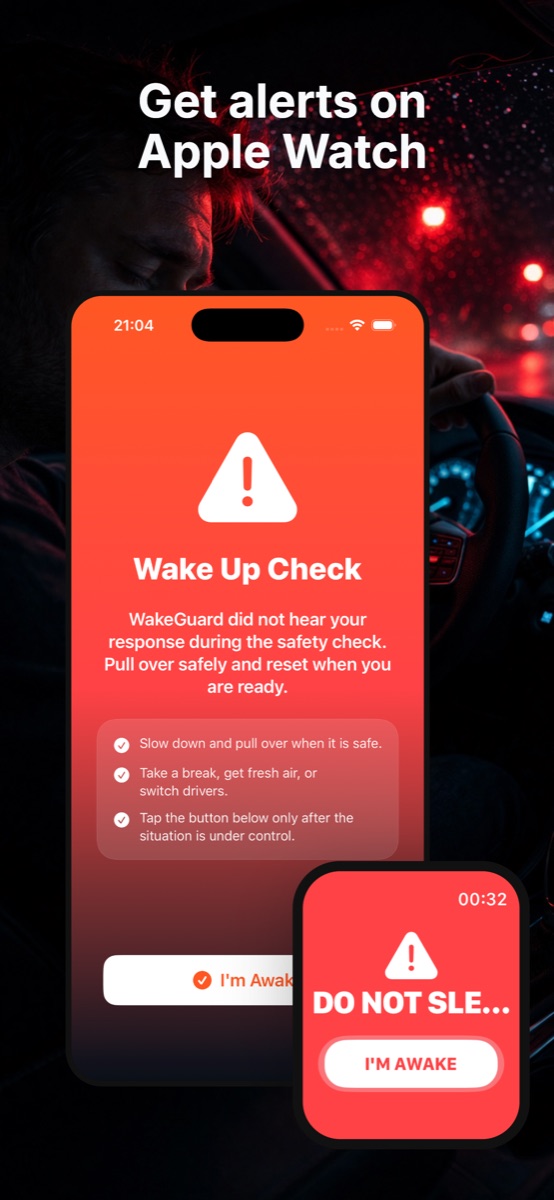
- Eyes closed too long → dual alarm: the iPhone erupts with the full-screen Wake Up Check while your Watch buzzes with an urgent "DO NOT SLEEP" alert and countdown.
- Only you can end it: the alarm continues until you deliberately tap "I'M AWAKE" — on the Watch or the phone. No auto-dismiss, because a microsleeping driver dismisses nothing.
- Missed response → escalation: if you don't respond during a safety check, WakeGuard treats it as danger, not silence — the Wake Up Check stays on until you confirm you're back.
Put the alarm on your wrist tonight
WakeGuard is free on the App Store and pairs with Apple Watch (Series 4 and later) automatically. AI eye tracking on iPhone, unmissable haptic alarms on your wrist.
Setup: iPhone + Watch in under two minutes
- Download WakeGuard on your iPhone (free, no account). The Watch companion comes along via your paired Apple Watch.
- Wear your Watch snugly. A loose band mutes haptics — snug enough that taps feel crisp.
- Mount the iPhone facing you and tap start; confirm "Face detected."
- Do a driveway test. Before your first real drive, let it lock on and get familiar with the alert flow while parked — so the first Wake Up Check you experience at speed isn't also your first ever.
- Drive. Use Maps freely (picture-in-picture keeps tracking); your wrist is now part of the safety system.
Good pairings for high-risk drives
The Watch alarm matters most when sound is least reliable: the silent 2 a.m. highway (see the night driving plan), the loud cab of a truck (trucker fatigue guide), and the autopilot commute home after a night shift (shift-worker protocol). In every case the response to an alarm is the same: next safe stop, 20-minute nap. The Watch buys you the seconds to get there.
Note: WakeGuard works fully without a Watch too — the iPhone alarm alone is designed to be unmissable. The Watch adds a second, skin-level channel for the drives where you want every advantage.